
Cosmo User Guide
Getting Started
Introduction
Welcome to Cosmo, our internal AI platform powered by OpenWebUI. This guide covers the key features available to you for our April 29, 2026 launch.
Cosmo is built on industry-leading AI technology with enterprise-grade security through Cloudflare Zero Trust access. Whether you're looking for quick answers or deep analysis, Cosmo is designed to support your work across Concord.
The Cosmo Interface
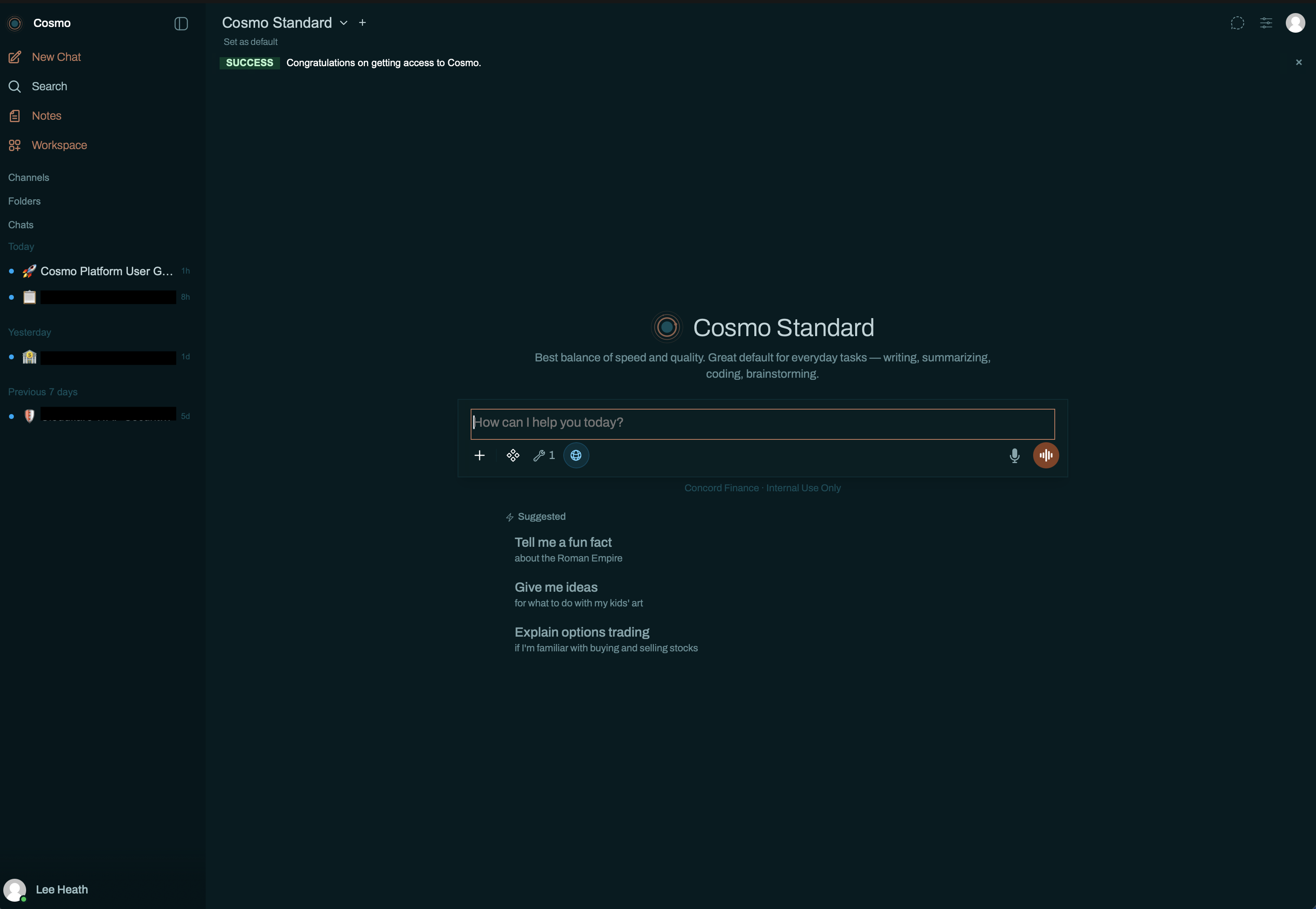
Below is the main Cosmo workspace. The left sidebar gives you New Chat, Search, Notes, Workspace, and your organization tools (Channels, Folders, Chats). The center panel is your active conversation; suggestions appear below the prompt to help you get started.
Core Features
Chat Models
You have access to two AI models optimized for different needs.
Cosmo Standard
Cosmo Light
Recommendation — Experiment with both models to discover your preference for different task types.
Document Creation & Upload
Bring your documents into Cosmo for collaborative AI-assisted work.
Capabilities- Upload existing documents for analysis and discussion.
- Create new documents within Cosmo.
- Share documents as context for AI responses.
- Maintain version history alongside your conversations.
- Ask the AI to review or analyze documents.
- Build upon documents with AI suggestions.
- Use documents as reference material for ongoing discussions.
Trigger phrase required
Document creation is triggered by a specific phrase. To have Cosmo generate a document for you, start your prompt with create me a.
Example: create me a doc from this md file
Other phrasings (e.g., "make a document," "build me a file," "generate this as a Word doc") may not invoke the document creation tool. If your document doesn't generate, rephrase your prompt to begin with create me a.
Web Search
Enhance your conversations with real-time information from the internet.
Features- Pull current data directly into your chats.
- Keep responses up-to-date and factually grounded.
- Reference recent news, statistics, and developments.
- Verify information during conversations.
How to use — Web search is already enabled in all chat sessions. It will be used automatically.
Notes
Capture and organize important information directly within Cosmo.
Features- Save key points from conversations.
- Create reference materials for future use.
- Organize thoughts and ideas.
- Access notes across sessions.
- Reduce external tools and context-switching.
- Keep knowledge centralized in Cosmo.
- Build a personal knowledge base over time.
Organization Tools
Channels
Channels are shared conversation spaces designed for team collaboration and organized communication.
What are Channels- Dedicated spaces for group discussions.
- Topic, project, or team-based organization.
- Shared visibility across team members.
- Persistent conversation history.
- Create channels for ongoing projects or initiatives.
- Use channels to share findings and collaborate with colleagues.
- Reference channel conversations for team continuity.
- Keep channel topics focused and clearly named.
- Research & Development project updates.
- Weekly team briefings.
- Cross-functional problem-solving.
- Knowledge sharing within departments.
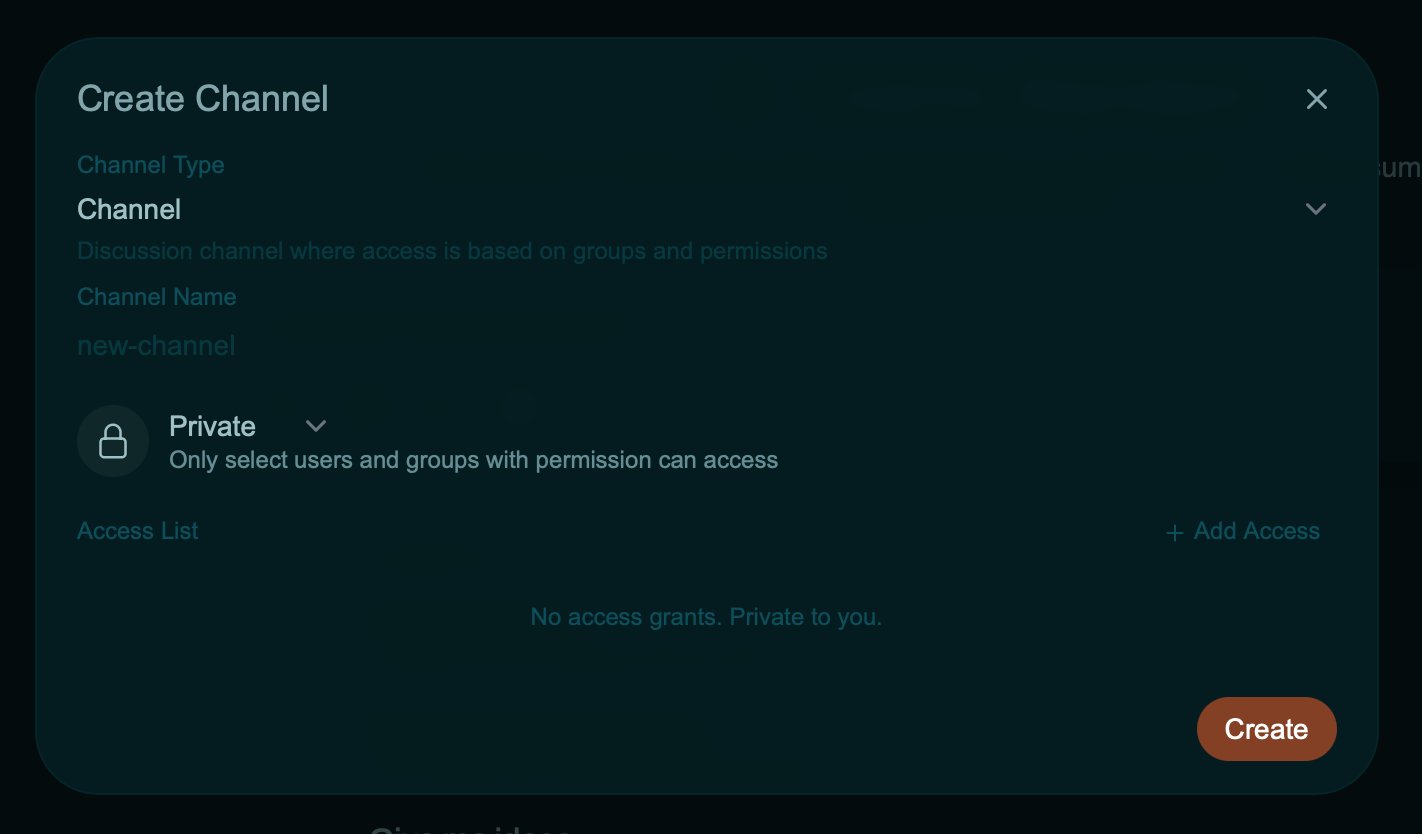
From the sidebar, choose Channels and create a new one. Pick a Channel Type (standard Channel for groups), give it a name, and choose Private if it should be limited to specific users or groups via the Access List.
Folders
Folders help you organize your personal chat history and content for easy access and management.
What are Folders- Personal organization structure for your chats.
- Hierarchical organization by topic or project.
- Quick navigation to frequently referenced conversations.
- Individual user storage.
- Create folders that match your workflow.
- Name folders clearly for easy retrieval.
- Use folders for personal research and exploration.
- Archive older conversations in designated folders.
- By project name.
- By client or team.
- By topic or subject area.
- By time period or priority.
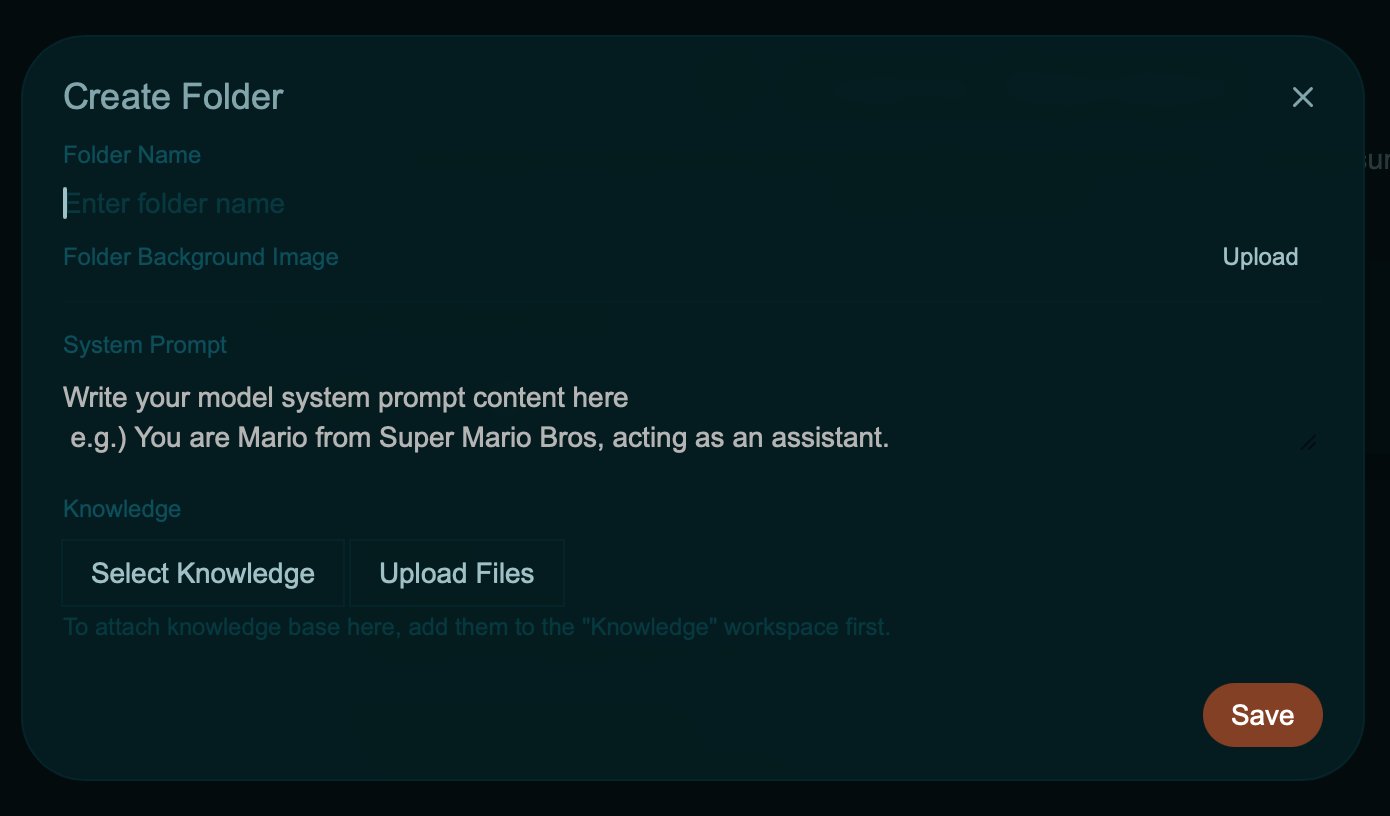
Folders can carry their own System Prompt and attached Knowledge, so every chat opened inside a folder inherits that context. This is useful for project-specific assistants — e.g., a folder for vendor reviews where every new chat starts with the right system prompt and reference material already attached.
Chat Controls & Customization
System Prompt
Customize how Cosmo behaves and responds to your needs.
What it does- Sets guidelines for the AI's tone and style.
- Influences how the AI approaches problems.
- Establishes context for specific use cases.
- Persists across conversations in a chat thread.
- Define a specific role or expertise level.
- Set communication preferences.
- Establish guardrails for responses.
- Tailor outputs to your workflow.
Valves
Fine-tune advanced model parameters to optimize Cosmo's behavior for your specific needs.
What they control- Response characteristics and style.
- Model behavior parameters.
- Advanced configuration options.
- Testing different response patterns.
- Optimizing for specific workflows.
- Fine-tuning model behavior.
Note — Advanced parameters are configured for standard users. Contact your administrator for custom valve adjustments if needed.
Quick Start Tips
Getting the Most Out of Cosmo
- Temporary Chat is enabled.Use it for quick, one-off queries that don't need to be saved to your history.
- Choose the right model.Use Cosmo Light for quick questions, Cosmo Standard for complex work.
- Leverage Web Search.Enable it when you need current information or real-time data.
- Organize proactively.Create Folders early to keep your personal work organized.
- Collaborate in Channels.Share findings and work with your team in dedicated Channel spaces.
- Use System Prompts.Set up custom prompts for recurring types of work to save time.
- Document your work.Upload or create documents to maintain context and build institutional knowledge.
- Use the right phrasing for document creation.Start your prompt with
create me a(e.g., create me a doc from this md file) to trigger the document creation tool.
Common Workflows
Research & Analysis
- Enable Web Search for current information.
- Upload relevant documents.
- Use Cosmo Standard for comprehensive analysis.
- Save key findings in Notes.
- Share results in appropriate Channel if team-relevant.
Quick Information
- Choose Cosmo Light for speed.
- Ask your question.
- Use Temporary Chat to avoid clutter.
- No need to save unless you need reference later.
Team Collaboration
- Create or join relevant Channel.
- Share documents for group discussion.
- Use System Prompt to establish team standards.
- Build shared knowledge base through Channel history.
Personal Project Management
- Create project Folder in your personal space.
- Maintain related conversations in that Folder.
- Reference previous chats as needed.
- Save important Notes for quick access.
Support & Next Steps
Questions?
- Reach out to your Concord AI Champions.
- Check internal documentation for advanced topics.
- Provide feedback on features you'd like to see. Look for the Workflow on #concord-ai-help.
Before You Start
- Familiarize yourself with the two available models.
- Try creating a test Folder to organize chats.
- Experiment with Web Search to understand its capabilities.
- Set up a System Prompt for your primary use case.
Welcome to Cosmo!
We're excited to have you on board. This platform is designed to make your work more efficient and collaborative. Explore the features, find what works best for you, and don't hesitate to reach out with questions.
# concord-ai-help